Link your business’s Google My Business Profile to import Google reviews.
You need to have admin access to an existing Google My Business Profile that is verified, has a location, and is public. If you do not have one create one by following the steps at How to add or claim your Business Profile on Google
Ensure the browser pop-up blocker is INACTIVE.
Steps:
Click on “Integrate” then choose:-
A. Grant Access:
Click on “Log in with Google.”
Choose an account with admin access to the Google Profile.
Click “Continue” to allow access to your Google email account.
In the next window, select and integrate the intended Google profile. If not visible, the email lacks admin access.
Click “Integrate,” and upon success, a message will appear. Allow time for the app to import Google reviews.
B. Public Access:
For public access integration, the app imports the last 5 past reviews, and replying within the app is not possible.
Integrate by searching for your Google My Business using the search box, using either the GMB name or location.
Click “Integrate,” and upon success, a message will appear. Allow time for the app to import Google reviews.
Link your business’s Facebook page to import reviews.
The Facebook account you want to sign in with must have admin access to the existing Facebook page you intend to connect, and the page must be public.
Ensure the browser pop-up blocker is inactive.
Steps:
After clicking on “Integrate,” click on “Login With Facebook” in the pop-up that shows.
Enter your Facebook personal account details and log in.
In the next prompt, select the pages you want to connect, along with Instagram rights for page posts/content access.
Note: We need “Rights for page posts” to publish posts and “Content access” to import reviews. If you don’t want to connect to Instagram, skip that passage and grant only Facebook permissions.
Click “Done,” then “OK” in the next prompts confirming you have linked Facebook.
Select the desired page from the drop-down menu and click “Integrate Facebook.” Allow the app some time to import the reviews.
In case you do not see the page in the drop-down.
Note: The page visibility issue sometimes affects page owners. As a workaround, you can grant access to a different Facebook account, and that should enable you to see the page in the dropdown.
Integrate platforms for review management, including Google and Facebook, by directly connecting via login credentials. This allows seamless replies to reviews within the Public Reviews section.
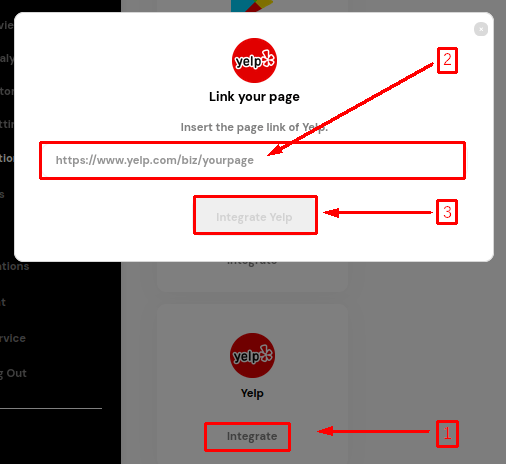
For other platforms, input your page link to import reviews. Note that only the most recent reviews will be imported, ensuring up-to-date feedback is available.
Begin the review platform integration process by clicking on “Settings” in the left sidebar.
Next, select “Integrations” to access the integration settings.
Easily integrate with over twenty different review platforms by clicking the “Integrate” button next to each platform.
Once you click “Integrate,” follow the on-screen instructions provided to guide you through the platform integration process.